
For years, Apple Watch users have had one specific complaint: “Why can’t I find my keys with my watch the same way I can with my iPhone?”
While the iPhone has boasted the slick, green-screen Precision Finding interface since the iPhone 11, the Apple Watch was relegated to simple directional arrows or playing sounds. That changes now.
With the latest software rollout and the emergence of the AirTag 2, the Apple Watch Series 9 (and Ultra 2) has finally unlocked its full potential. The Second-Generation Ultra Wideband (UWB) chip inside your Series 9 is no longer just for finding your iPhone 15—it is now a fully capable item tracker on its own.
In this guide, we dive deep into the Precision Finding update for Apple Watch Series 9, explaining how it works, why the “U2” chip matters, and how to start tracking your essentials directly from your wrist.
The Game Changer: Precision Finding for AirTags on watchOS
The buzz in the tech community is driven by a significant shift in the Find My ecosystem. Previously, Precision Finding was an iPhone-exclusive feature because it required the intense processing and directional awareness that earlier Watch chips struggled to handle efficiently without draining the battery.
However, the Apple Watch Series 9 was built with future-proofing in mind. Its S9 SiP (System in Package) includes the same Second-Generation UWB chip found in the iPhone 15 and 16 lineups. With the latest software update, Apple has flipped the switch, allowing this hardware to communicate directly with UWB-enabled AirTags.
Why Is Everyone Checking Compatibility?
The trend stems from confusion regarding which hardware supports this. Many users with a Series 7 or 8 are discovering they cannot use this feature, despite updating their software. The distinction lies entirely in the silicon:
- U1 Chip (Series 6, 7, 8, Ultra 1): Supports basic direction finding but lacks the bandwidth for the high-fidelity Precision Finding interface with AirTags.
- U2 Chip (Series 9, Ultra 2, Series 10): Supports full Precision Finding with distance, directional arrows, and haptic guidance.
This hardware requirement is why the Series 9 is currently seeing a resurgence in interest—it is the entry point for this “Pro” level tracking feature.
How Precision Finding Works on Series 9
Using Precision Finding on your wrist is a tactile experience designed to be used when your hands are full or your phone is out of reach.
1. The Interface
When you select an AirTag in the Find Items app on your watch, you are no longer just greeted with a map. If you are within range (typically 30-40 feet for UWB connection), a new button labeled “Find” appears.
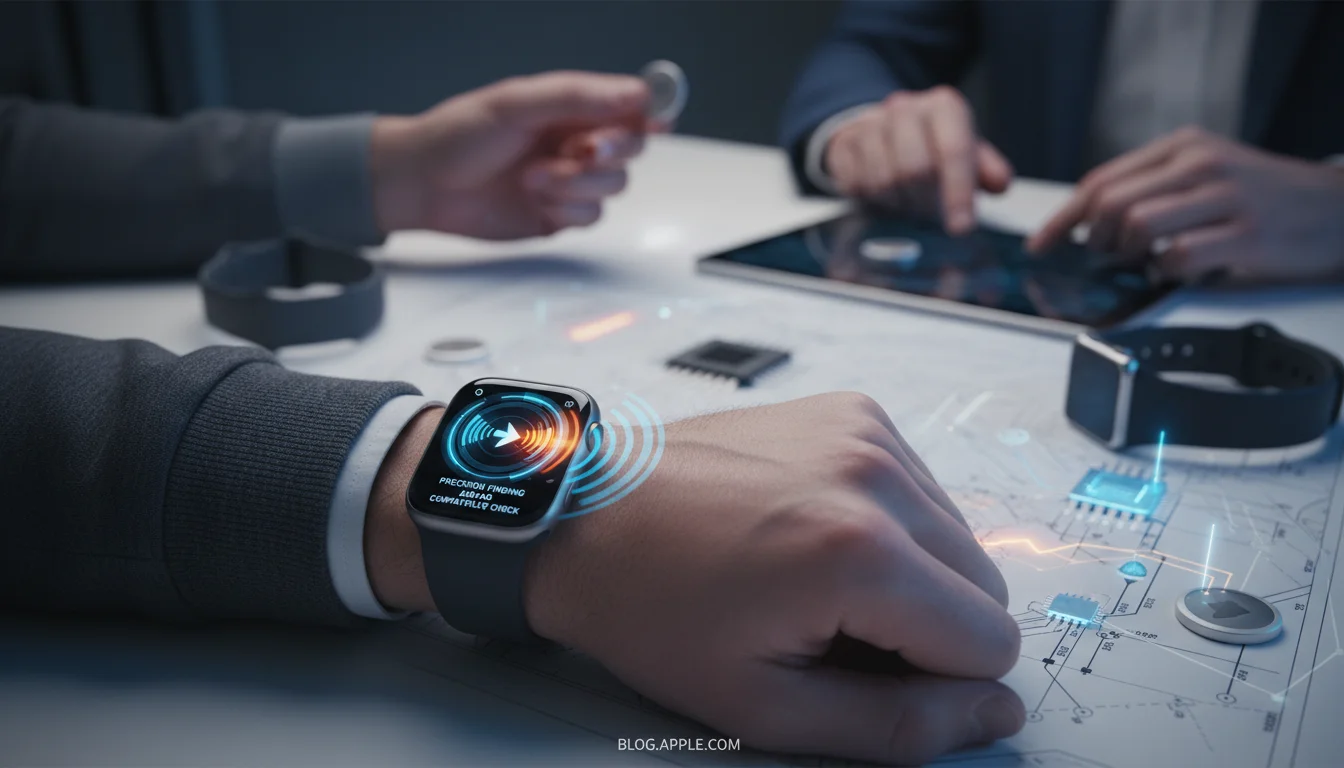
Tapping this launches the Precision Finding view. Unlike the phone, which relies heavily on visuals, the Watch interface uses a high-contrast display with a large arrow and distance readout (e.g., “4.5 ft to your right”). The background shifts from grey to green as you get closer.
2. Haptic Guidance
This is where the Series 9 shines. Because looking at your wrist while walking around a room can be awkward, Apple has implemented distinct haptic feedback profiles. The Taptic Engine pulses faster as you approach the item. Users report being able to find keys dropped between couch cushions without even looking at the screen, guided solely by the vibration frequency.
3. The “Vertical” Axis
With the improved UWB sensors in the Series 9, the watch can better detect if an item is significantly above or below you, helping distinguish if your wallet is on the floor or on a high shelf—a nuance that previous Bluetooth-only tracking often missed.
Step-by-Step: How to Use It
Ready to test your hardware? Follow these steps to initiate Precision Finding from your Apple Watch Series 9.
Prerequisites
- Device: Apple Watch Series 9 or Apple Watch Ultra 2.
- Software: Ensure both your iPhone and Watch are on the latest OS versions (watchOS 10.x or newer recommended).
- Tag: An AirTag (Gen 1 or Gen 2) registered to your Apple ID.
The Process
- Press the Digital Crown and open the Find Items app (green circle with items icon).
- Select the AirTag you want to locate from the list.
- If you are within Bluetooth/UWB range, you will see a prominent “Find” button (arrow icon). Tap it.
- Move your arm: The watch may ask you to move your wrist around to lock onto the signal.
- Follow the Arrow: Once connected, follow the on-screen arrow. The distance will count down in real-time.
- Pinpoint: When you are within inches, the watch will give a strong haptic “thud” and the screen will turn bright green. You can then tap the sound icon to play a chime on the AirTag for final confirmation.
Deep Dive: Series 9 vs. Previous Models
To understand the value proposition, it helps to compare the experience across generations.
| Feature | Series 9 / Ultra 2 | Series 6 / 7 / 8 | Apple Watch SE |
|---|---|---|---|
| Chipset | S9 SiP (2nd Gen UWB) | S6-S8 SiP (1st Gen UWB) | No UWB |
| Precision Interface | Yes (Distance & Direction) | No (Direction only via Phone) | No |
| Haptic Guidance | Advanced Proximity Haptics | Basic | None |
| Find iPhone 15 | Yes (Precision) | Ping (Sound only) | Ping (Sound only) |
Frequently Asked Questions (FAQ)
Does this work with the original AirTag (Gen 1)?
Yes, but with caveats. The Series 9 can track the original AirTag using Precision Finding, but the range and lock-on speed are significantly improved if you are using the newer AirTag 2, which shares the same 2nd Gen UWB chip. The connection between two Gen 2 chips allows for a more stable signal through walls and obstacles.
Why can’t I see the “Find” button on my Series 8?
The Series 8 uses the First-Generation UWB chip (U1). While it is a capable chip, Apple has restricted the full Precision Finding UI to the U2 chip found in Series 9 and later, likely due to the power efficiency and signal fidelity required for the real-time graphical overlay.
Does this drain the battery?
Precision Finding is a power-intensive task as it engages the screen at high brightness, the UWB radio, and the haptic engine simultaneously. However, because these interactions usually last less than a minute, the impact on your Series 9’s all-day battery life is negligible.
Can I find my iPhone with this feature too?
Absolutely. In fact, this was the headline feature when the Series 9 launched. If you have an iPhone 15 or newer, you can use the same interface to find your phone. Open the Control Center on your watch and long-press the “Ping iPhone” icon to enter the Precision Finding mode for your phone.
Conclusion
The activation of Precision Finding for AirTags on the Apple Watch Series 9 marks a significant maturity point for wearable technology. It transforms the watch from a passive notification viewer into an active tool for interacting with your physical environment.
For users who have already upgraded to the Series 9, this software update feels like a free hardware upgrade. For those holding onto older models, the ability to find luggage, keys, and pets with a glance at the wrist—leaving the phone in the pocket—might finally be the compelling reason to upgrade.
As the UWB ecosystem expands, we can expect even more “point-and-click” interactions in the future, but for now, the Series 9 is the undisputed king of the Find My network.