
If you have been on X (formerly Twitter) in the last week of January 2026, you have likely seen the lobster. Moltbot (formerly known as Clawdbot) has completely taken over the tech discourse, promising something we have been waiting for since the first days of Siri: a personal AI assistant that actually does things.
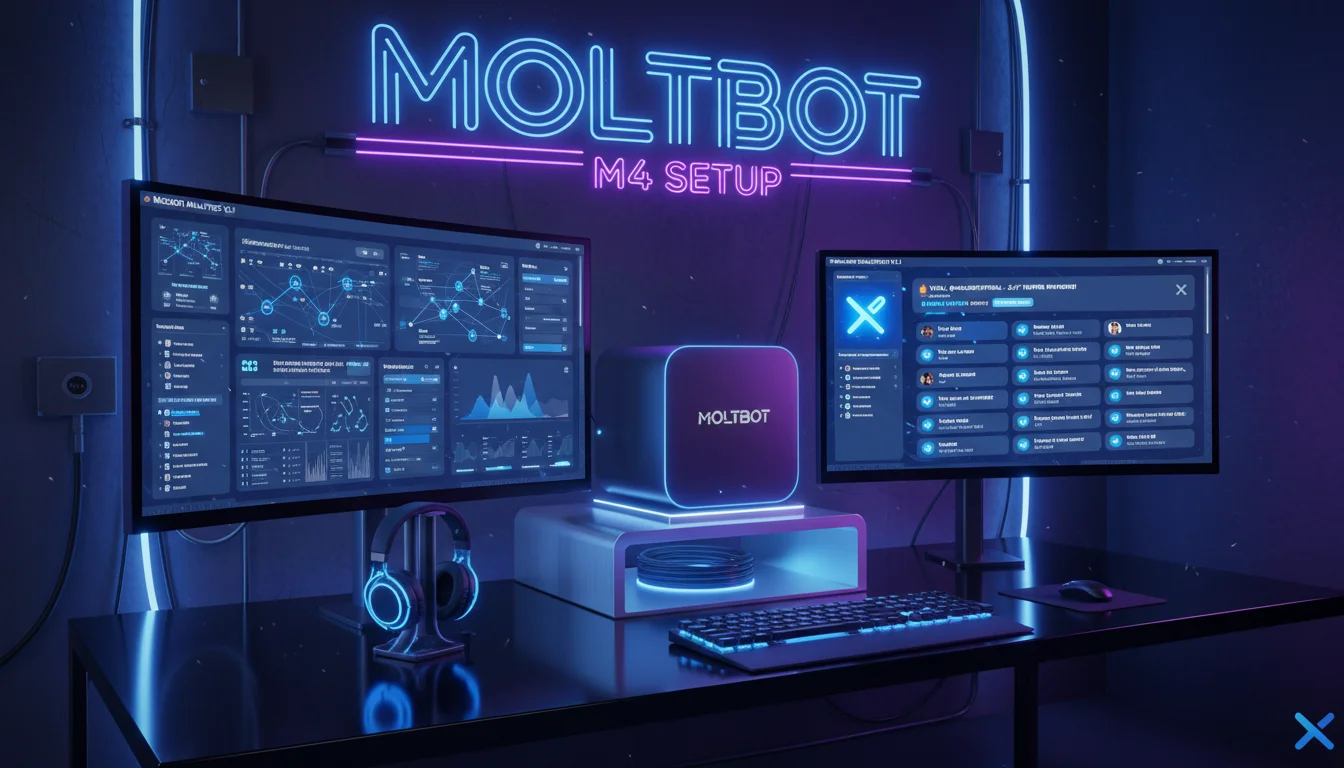
But the viral trend isn’t just about the software. It’s about the hardware powering it. Tech enthusiasts, developers, and productivity hackers are flocking to the Mac Mini M4 as the dedicated "brain" for their Moltbot instances. Photos of stacked Mac Minis are flooding timelines, and for good reason.
Why is a $500 desktop computer suddenly the most coveted accessory for AI? Because running an autonomous agent with root access to your life requires power, silence, and—most importantly—isolation. In this deep-dive guide, we will explore why the Mac Mini M4 is the "gold standard" for Moltbot, how to set it up for maximum performance, and the critical security steps you need to take before giving an AI the keys to your digital house.
What is Moltbot? (And Why Did It Go Viral?)
Before we talk hardware, we need to understand the software phenomenon. Moltbot began its life as an open-source project called "Clawdbot" by developer Peter Steinberger. It promised a radical shift from the "chatbot" era to the "agentic" era.
Unlike ChatGPT or Claude, which live in a browser tab and wait for you to type, Moltbot runs locally on your machine. It connects to the messaging apps you already use—WhatsApp, Telegram, Signal, Discord—and acts as a proactive assistant. But the real kicker is its System 2 capabilities:
- Deep System Integration: Moltbot can read files, execute terminal commands, open browsers, and manage your calendar.
- Persistent Memory: It remembers conversations from weeks ago, maintaining a continuous context of your life.
- Proactivity: It doesn’t just reply; it can message you. "Hey, you asked me to remind you about that invoice when you got back to your desk. Do you want me to draft it now?"
The "Clawdbot" to "Moltbot" Shift
The viral explosion hit a speed bump in late January when Anthropic (the creators of the Claude AI model) requested a name change due to trademark concerns. "Clawd" was too close to "Claude." The project rebranded to Moltbot—a nod to the lobster mascot molting its shell to grow. The rebranding only fueled the hype, cementing it as the "rebel" open-source alternative to big tech’s walled gardens.
Why the Mac Mini M4 is the "Gold Standard" for Moltbot
You can technically run Moltbot on a Raspberry Pi, an old Windows laptop, or a cloud VPS. So why is the Mac Mini M4 (2024 model) considered the definitive hardware choice? It comes down to the "Always-On" Triangle: Efficiency, Performance, and Security.
1. The M4 Chip: Perfect for Local Inference
While Moltbot often uses cloud APIs (like Anthropic’s Claude 3.5 Sonnet or Opus) for heavy reasoning, the local architecture relies on your machine for context retrieval, embedding management, and executing tools. The Apple M4 chip features a vastly improved Neural Engine (NPU) compared to its predecessors.
For users who want to run local LLMs (like Llama 3 or Mistral) alongside Moltbot to save on API costs, the M4’s unified memory architecture is unbeatable. The base model’s 16GB of RAM is sufficient for running the agent environment and a quantized local model without the system choking.
2. Silent, 24/7 Operation
Moltbot is designed to be awake when you are asleep. It monitors your emails, checks for updates, and organizes your files overnight. This requires a machine that can run 24/7 without overheating or sounding like a jet engine.
The Mac Mini M4 is virtually silent. Its thermal efficiency allows it to sit on a desk or in a closet, drawing minimal power (often less than 10W at idle). Compared to a gaming PC or an old Intel server, the electricity savings alone over a year make the Mac Mini a smart investment.
3. The "Burner Device" Security Strategy
This is the most critical reason for the trend.
Giving an AI agent "shell access" (the ability to run commands) on your primary work laptop is a massive security risk. If a prompt injection attack tricks the bot, it could theoretically delete your files or upload your SSH keys to a random server.
Security experts and the Moltbot community have coalesced around the "Air Gap" philosophy. By running Moltbot on a dedicated Mac Mini M4, you create a physical sandbox. If the bot goes rogue or executes a bad command, it destroys the environment on a $500 secondary machine, not your main MacBook Pro containing your life’s work. This "AI Console" setup allows you to message the bot from your phone safely, knowing the execution is happening on an isolated device.
Hardware Specs: Which Mac Mini M4 Should You Buy?
If you are buying a Mac specifically for a Moltbot server, you don’t need to max out the specs. Here is the tiered recommendation based on community feedback:
- The Sweet Spot (Recommended): Mac Mini M4, 16GB RAM, 256GB SSD.
This base model is currently selling for around $499-$599. It handles the Node.js/Python environment, Docker containers, and local vector databases with ease. - The "Future Proof" Setup: Mac Mini M4, 24GB RAM, 512GB SSD.
If you plan to run heavier local models (7B or 13B parameters) entirely offline to avoid API bills, the extra RAM is necessary. - Overkill: Mac Mini M4 Pro.
Unless you are running a cluster of agents or training models, the Pro chip is unnecessary for a personal Moltbot instance.
Step-by-Step Setup Guide: Moltbot on Mac Mini
Ready to join the revolution? Here is how to turn your new Mac Mini into an autonomous agent.
Phase 1: The "Glass Box" Preparation
Do not install Moltbot directly on the bare metal OS if you can avoid it. Use Docker. This provides a software layer of isolation.
- Clean Install: Set up macOS Sequoia (or latest) on your Mac Mini. Create a dedicated user account named "Molt" or "Agent".
- Install Homebrew: The package manager for macOS.
/bin/bash -c "$(curl -fsSL https://raw.githubusercontent.com/Homebrew/install/HEAD/install.sh)" - Install Docker Desktop: Download the Apple Silicon version. Ensure it is running.
Phase 2: Installing Moltbot
Moltbot (formerly Clawdbot) is open-source. You will likely be cloning it from GitHub.
- Clone the Repository:
git clone https://github.com/moltbot/moltbot.git
cd moltbot - Configure Environment:
Rename.env.exampleto.env. You will need API keys. The gold standard right now is Anthropic’s Claude 3.5 Sonnet or Opus for the best reasoning capabilities. Enter yourANTHROPIC_API_KEYin the file. - Select Your Gateway:
Moltbot needs a way to talk to you. The most popular method is Telegram or WhatsApp due to their easy API integration for bots.
For Telegram: Message @BotFather on Telegram to get a bot token and paste it into your configuration.
Phase 3: The First Run
Run the installation script (usually npm install && npm start or a Docker compose command depending on the latest version). Once the terminal says "Listening," pick up your phone.
Open Telegram/WhatsApp, find your bot, and type: "Hello, who are you?"
If it replies, congratulations. You now have a private AI server running in your home.
Security: The "Dangerous Mode" Warning
Moltbot has a configuration often labeled as "Dangerous Mode" or "Auto-Execute." When enabled, the bot can run terminal commands without asking for your permission first.
Our Advice: NEVER enable full auto-execution for internet-connected tasks.
Always keep "Human-in-the-Loop" active for shell commands. If the bot wants to delete a file or send an email, it should send you a message: "I am about to run ‘rm -rf /temp’. Is this okay?" You reply "Yes" to authorize.
Furthermore, ensure your Mac Mini has FileVault enabled and that you are not storing your crypto cold storage seed phrases or sensitive family documents on this specific machine. Treat the Moltbot Mac Mini as a semi-public kiosk.
FAQ: Common Moltbot Questions
Can I run Moltbot on an M1 or M2 Mac Mini?
Absolutely. The M1 is still incredibly capable. However, the M4 offers better power efficiency and significantly faster NPU performance if you decide to switch to local models later. If you already have an M1, use it. If you are buying new, get the M4.
Is Moltbot free?
The software is open-source and free (MIT License). However, the intelligence is not. You will pay for API tokens (Anthropic or OpenAI). A heavy user running Moltbot 24/7 might spend $20-$50 per month on API fees. This is the cost of having a real AI employee.
Why not just use the ChatGPT Mac App?
The ChatGPT app is sandboxed; it cannot truly control your computer. It cannot watch a folder for new PDFs, OCR them, and email a summary to your accountant automatically. Moltbot is an agent; ChatGPT is a chat interface.
Can I access my Moltbot when I’m not home?
Yes! That is the beauty of the messenger integration. Since the bot communicates via Telegram/WhatsApp, you can be halfway across the world, text your bot "Check the server logs on the Mac Mini," and it will execute the command at your home and text you the result.
Conclusion: The Year of the Agent
The "Moltbot Mac Mini M4" trend is more than just a viral moment on X; it represents the maturation of AI. We are moving from chatting with AI to living with AI.
By setting up a dedicated unit, you are building a private, secure, and always-on infrastructure for the future of work. Whether you are a developer automating your git commits or a creative managing your digital life, this little $500 aluminum box is the best employee you will ever hire.
Disclaimer: Always review the code of open-source AI agents before installing. Granting terminal access to any software carries inherent risks.