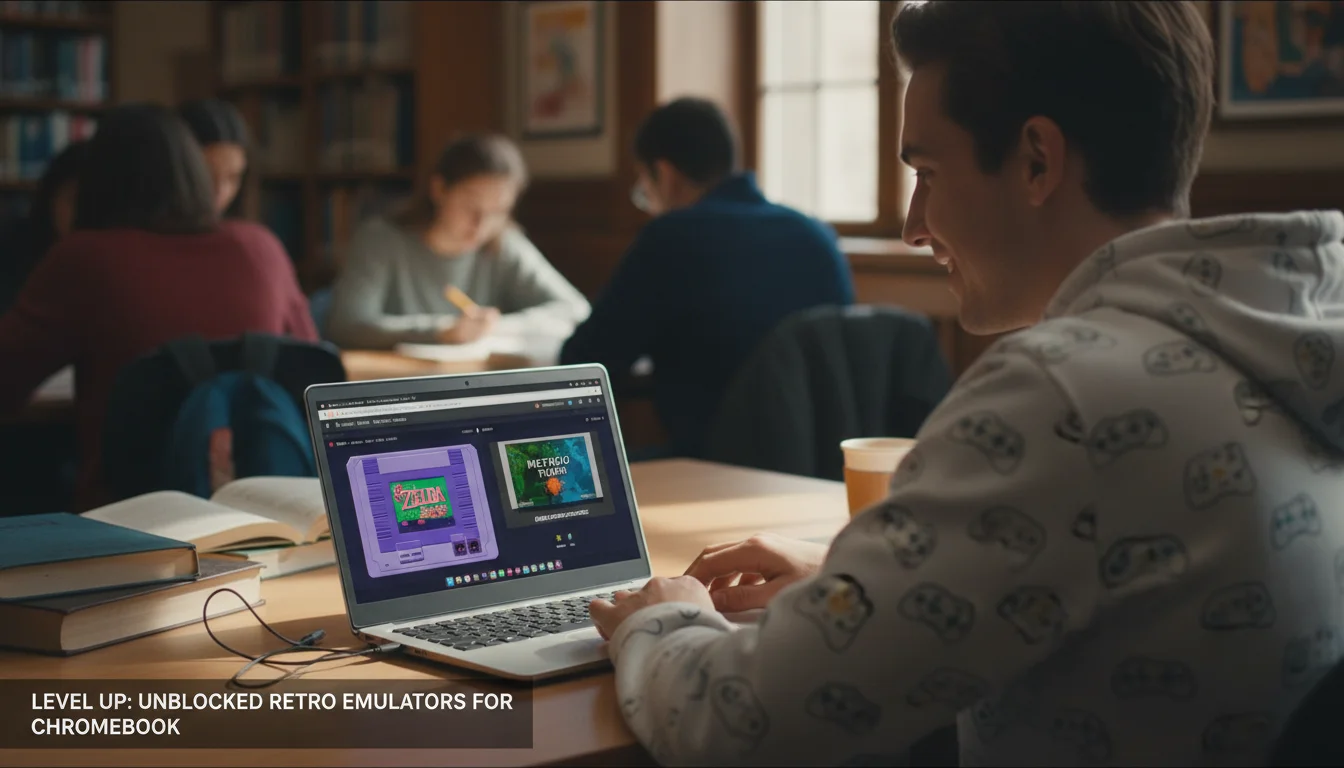

For students and retro enthusiasts armed with a school-issued Chromebook, the digital playground often feels locked down. Administrators block executable downloads, restrict the Chrome Web Store, and blacklist popular gaming domains. However, a technical shift in web development has opened a new door: WebAssembly (Wasm) and JavaScript-based emulation.
Gone are the days when you needed to install a heavy software client to play The Legend of Zelda or Pokemon FireRed. Today, the unblocked retro emulators for Chromebook niche is thriving because these tools run entirely within the browser’s sandbox. They don’t require installation privileges, making them invisible to many traditional IT restriction methods. This guide covers the high-authority tools and methods to play classic console games on restricted networks safely and smoothly, similar to how students often search for how to unblock games on a school Chromebook.
Understanding Chromebook Restrictions: Why These Emulators Work
To understand why these solutions are “unblocked,” we must look at how school filters operate. Most institutional firewalls function on two levels:
- Domain Blocking: blocking specific URLs like steam.com or roblox.com.
- Extension/App Blocking: Preventing the installation of
.exefiles (which Chromebooks can’t run anyway) or Android Apps via the Play Store.
Browser-based emulators bypass the second restriction entirely because they are simply websites. They bypass the first restriction (domain blocking) by often being hosted on educational or developer-focused domains like GitHub Pages (github.io), Google Sites, or legitimate cloud tools like Vercel and Netlify. These domains are difficult for schools to block broadly without breaking legitimate coding curriculums, much like the repositories found on unblocked games 67.
Top Unblocked Retro Emulators for Chromebook
We have tested the following platforms for latency, save-state functionality, and file system integration. These are the top performers for 2025.
1. Eclipse Emulator (The Gold Standard)
Eclipse is widely regarded as the premier browser-based emulator for iOS and ChromeOS users. It supports NES, SNES, Game Boy (GB), Game Boy Color (GBC), Game Boy Advance (GBA), Sega Master System, and Game Gear.
Why it works on Chromebooks:
- Google Drive Integration: Eclipse solves the “wipe on close” issue by syncing your save states and ROMs directly to your Google Drive. Since schools rarely block Google Drive, your game progress is safe.
- PWA Support: It functions as a Progressive Web App, meaning you can add it to your shelf and it runs offline once loaded.
- Clean UI: It mimics a native iOS app interface, which is touch-friendly for Chromebooks with touchscreens.
2. Afterplay.io (The Premium Cloud Experience)
A newcomer that challenges Eclipse, Afterplay.io utilizes cloud saves exclusively. It creates a seamless experience where you can start playing on a school Chromebook and pick up exactly where you left off on your phone at home.
Key Features:
- Auto-Saves: It treats save states like modern checkpoints.
- SRAM Support: Handles in-game saves (like saving at a Pokemon Center) flawlessly.
- Cheats: Built-in support for GameShark codes if you want to modify the experience.
3. The GitHub Mirror Method (SkoolEmu & WebNES)
This is the most technically resilient method. Developers host open-source emulators on GitHub Pages. Because GitHub is an essential tool for computer science classes, it is almost never blocked.
You can often find repositories like SkoolEmu or WebNES. Savvy users sometimes “fork” (copy) these repositories to their own GitHub accounts, creating a private URL (e.g., yourname.github.io/emulator) that no network filter has on its blacklist.
4. JS-DOS (For PC Classics)
If your taste leans more towards Prince of Persia or Doom, JS-DOS is the standard. It ports DOSBox to the web. It requires heavier resources than a GBA emulator, so ensure your Chromebook has few tabs open to prevent lag.
Technical Setup: Loading ROMs and BIOS
For an emulator to function, it requires game files, known as ROMs (Read-Only Memory). For systems like the Game Boy Advance, the emulator essentially acts as the console hardware, and the ROM file acts as the cartridge.
The Storage Dilemma:
School Chromebooks often wipe the “Downloads” folder upon restart. To avoid losing your games:
- Use External Storage: Keep your legally backed-up
.gbaor.snesfiles on a USB drive. Browser emulators can read directly from USB. - Use Cloud Imports: As mentioned with Eclipse, connecting a cloud account allows the browser to fetch the file dynamically without needing a local persistent download.
Optimizing Performance: Reducing Input Lag
Browser emulation relies on the JavaScript Gamepad API. While convenient, it can introduce input lag (latency). Here is how to optimize your Chromebook for retro gaming:
- Disable Unnecessary Extensions: Extensions consume RAM. On a 4GB Chromebook, this kills frame rates.
- Use Wired Controllers: Bluetooth introduces latency. A generic USB controller or a wired PS4 controller is usually plug-and-play compatible with ChromeOS.
- Frameskip Settings: If the audio stutters (a sign the CPU is maxed out), go into the emulator settings and set “Frameskip” to 1. This renders every other frame, keeping the audio smooth and the game playable.
Legal and Ethical Considerations
It is critical to distinguish between Emulators and ROMs. Emulators (the software) are generally legal tools for virtualization. ROMs (the games), however, are subject to copyright. Downloading ROMs for games you do not own is illegal in many jurisdictions. The “unblocked” community often focuses on Homebrew games—indie games developed specifically for retro consoles that are free to distribute.
FAQ: Unblocked Emulators on Chromebook
Can schools detect I am playing games?
If they monitor screen activity (using software like GoGuardian), yes. If they only monitor network traffic, playing offline-capable emulators (like Eclipse loaded as a PWA) makes detection much harder once the site is loaded.
Why is the sound crackling on my GBA emulator?
This is usually a CPU bottleneck. ChromeOS prioritizes battery life over raw performance. Try closing other tabs or enabling “Audio Worklet” in the emulator settings if available to offload sound processing.
Do these emulators work without Wi-Fi?
Yes, but only if they are cached. Tools like Eclipse can be “installed” to the shelf. Once you open them while online, they save the necessary code to your device, allowing you to launch them later without an internet connection.
Conclusion
The era of “unblocked” gaming has evolved from shady flash sites to sophisticated, cloud-integrated web applications. For Chromebook users, tools like Eclipse and Afterplay offer a gateway to the golden age of gaming without requiring admin rights or breaking school policies. Those looking for more variety may also enjoy exploring options like Macrollo Games unblocked. By leveraging the power of WebAssembly and cloud storage, students can keep the history of gaming alive right in their browser.