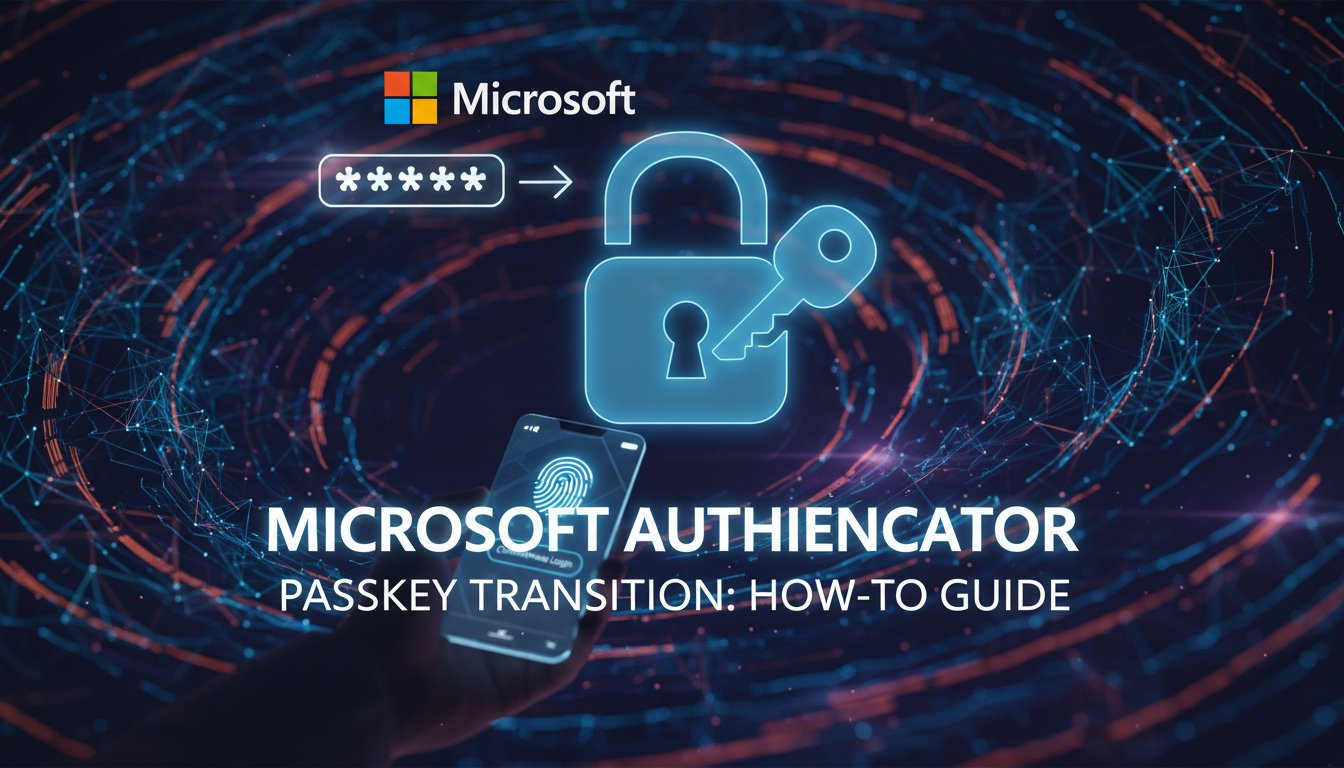

If you rely on Microsoft Authenticator to manage your passwords, you may have noticed some big changes recently. Microsoft is officially putting the "passwordless" future into overdrive. With new restrictions on saving passwords appearing in 2024 and a complete phase-out scheduled for August 2025, the tech giant is steering users toward a more secure alternative: Passkeys.
For many, this transition feels sudden. But don’t worry—passkeys are not only more secure than traditional passwords, but they are also significantly easier to use once set up. In this guide, we’ll break down exactly what is happening, why it matters for your security, and how to set up your passkeys in Microsoft Authenticator today.
What Is Happening to Microsoft Authenticator?
Microsoft has announced a timeline that spells the end for the traditional password manager features within the Authenticator app. Here are the key dates you need to know:
- June 2024: The ability to save new passwords in Authenticator was disabled.
- July 2024: Password autofill features were discontinued.
- August 2025: All saved passwords will become inaccessible within the app (though they will remain in your Microsoft Account/Edge).
The message is clear: the era of typing out complex strings of characters is ending. Microsoft wants you to switch to passkeys.
What Is a Passkey?
A passkey is a digital credential that is tied to your specific device. Unlike a password, which is a shared secret stored on a server (and can be stolen), a passkey consists of two parts: a public key stored by the website and a private key stored securely on your phone.
To log in, you simply unlock your phone using your face (FaceID), fingerprint, or PIN. No password is ever sent over the internet, making passkeys phishing-resistant. Even if a hacker creates a fake login page, they cannot steal your passkey because it physically resides on your device.
How to Set Up a Passkey in Microsoft Authenticator
Ready to make the switch? The process is straightforward, but you need to ensure your device meets the requirements (typically iOS 17+ or Android 14+). Follow these steps:
1. Update Everything
Ensure you have the latest version of the Microsoft Authenticator app and that your phone’s operating system is up to date.
2. Open Microsoft Authenticator
Launch the app and locate your work, school, or personal Microsoft account. If you haven’t added an account yet, tap the + button to add one.
3. Enable the Passkey
Tap on your specific account tile. You should see an option that says "Create a passkey" or "Enable phone sign-in." Tap it.
4. Verify Your Identity
Follow the on-screen prompts. You will be asked to authenticate using your device’s biometrics (FaceID, TouchID, or Android Biometrics). Once confirmed, your passkey is created and stored on your device.
How to Log In with a Passkey
The next time you log in to a Microsoft service (like Outlook, Office 365, or OneDrive), the experience will be different:
- On your phone: You will be prompted to use your passkey. Simply scan your face or fingerprint, and you’re in.
- On a computer: If you are logging in on a desktop, choose "Sign in with a passkey" or "Face, Fingerprint, PIN, or Security Key." A QR code will appear on your screen. Open your camera app on your phone, scan the QR code, and approve the login with your biometrics.
Troubleshooting & FAQs
Q: What happens if I lose my phone?
A: This is the most common concern. Passkeys can often be synced via cloud accounts (like iCloud Keychain or Google Password Manager), but Microsoft passkeys are device-bound in the Authenticator context. It is crucial to have a backup authentication method (like a secondary email or phone number) set up in your Microsoft account security settings.
Q: Is this different from the "Number Matching" approval?
A: Yes. The number matching system was a form of Two-Factor Authentication (2FA). Passkeys replace the password entirely. It is a one-step, highly secure login method.
Conclusion
The transition to passkeys might feel like a hassle initially, but it is a massive leap forward for personal cybersecurity. By removing the "human element" of weak or reused passwords, Microsoft Authenticator is making it nearly impossible for phishers to hijack your account. Take five minutes today to set up your passkey—your future self will thank you.